NTA CBT screen guide: every button and colour explained
An NTA CBT screen shows your question, answer choices, a question palette and a timer. The buttons save, clear or mark your answer. NTA uses this screen style in exams such as JEE Main and CUET. NEET 2027’s mode is not decided yet, and NTA has not released an official NEET CBT screen. This guide shows you our practice screen, based on NTA’s existing CBT interface.
What does the CBT screen look like?
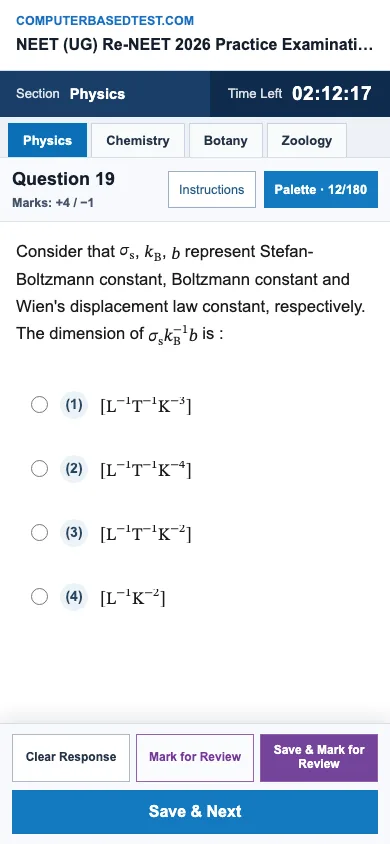
Start with the full screen below. The question sits in the main area. The palette helps you jump between questions. The timer and language control sit near the top. Answer buttons are near the bottom.
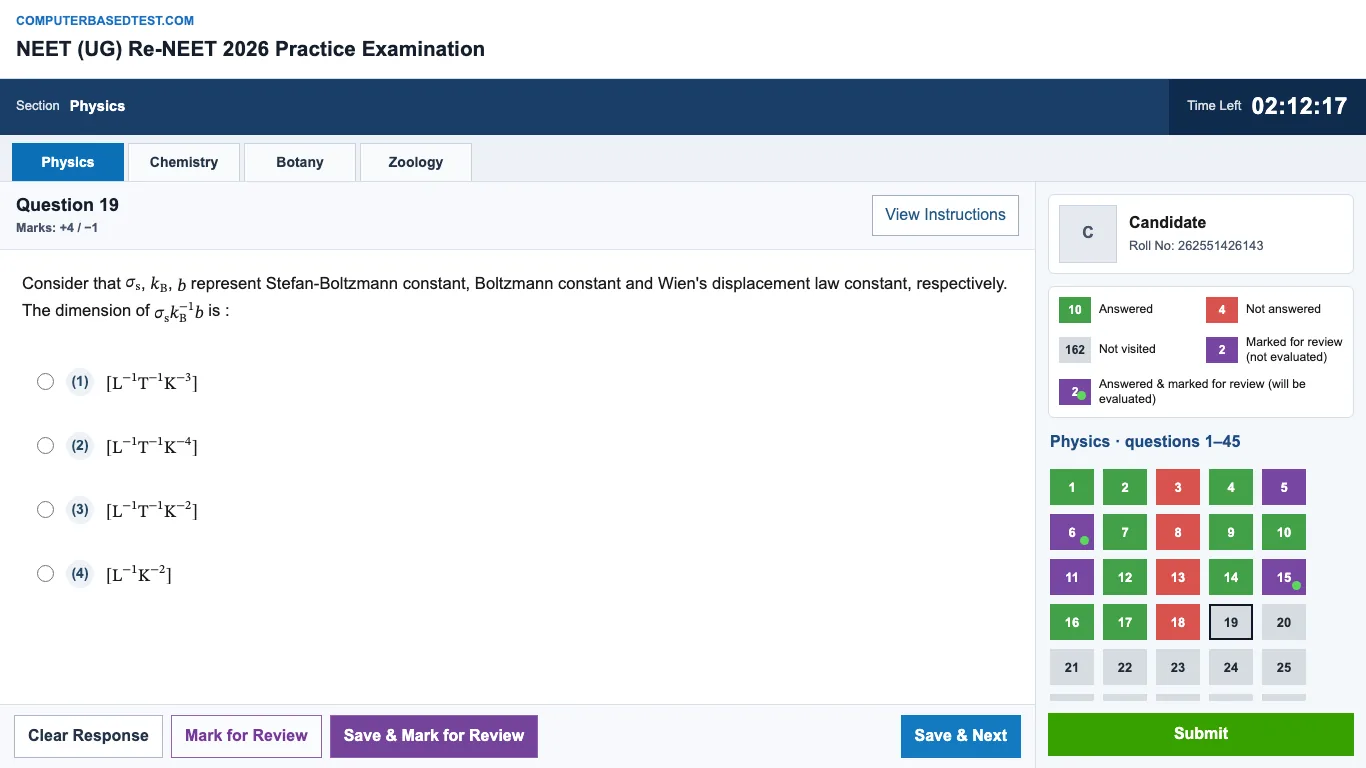
Our free practice screen copies the interface NTA uses for JEE Main and CUET-UG. It is not an official NEET CBT, because NTA has not released one. You can read the latest NEET 2027 mode update for the current status.
NTA’s JEE Main 2025 CBT instructions and CUET-UG 2026 CBT guidelines explain how its current screens and buttons work.
What do the question palette colours mean?
Each number in the palette shows the state of one question. The five states are confirmed in NTA’s instructions. The colours below are common examples, not official colour names. Follow the legend shown on your screen, as colours may differ slightly.
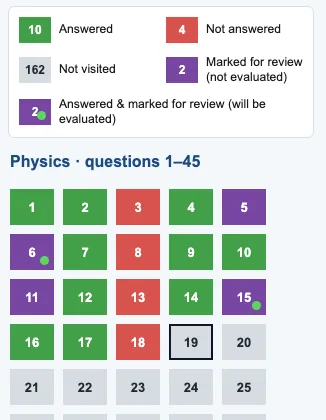
| Palette state | Usually shown as | What it means |
|---|---|---|
| Not Visited | Grey | You have not opened this question. |
| Not Answered | Red | You opened it but have not saved an answer. |
| Answered | Green | You selected and saved an answer. |
| Marked for Review | Purple | You marked it to check later, without saving an answer. |
| Answered & Marked for Review | Purple with a small green dot | You saved an answer and marked it to check later. |
Try it: tap a box to see what each palette state means.
Tap any box above.
You can return to a question and change your answer during the test. In NTA’s JEE Main and CUET instructions, an answer marked for review is still evaluated if you selected an answer. NTA says: “these answers will be considered for evaluation.” A question marked for review without an answer is not evaluated. See NTA’s JEE Main CBT instructions for the full rule.
What does each button do?

- Save & Next saves your selected answer and opens the next question.
- Mark for Review & Next marks the question, saves any selected answer, then moves on.
- Clear Response removes your selected answer. Use it if you want to leave the question unanswered.
The NTA bulletins name those three buttons. Some live screens may also show “Save & Mark for Review”. That label is reported, but it is not named in the bulletin. Check the button wording on your screen.
Take care when you jump to another question. Clicking its number in the palette does not save your current answer. Use a save button first if you want to keep it. You can practise each button on our free CBT test.
How do you move between sections or change language?
The subject sections appear on the top bar. NTA’s JEE Main and CUET instructions say you can move freely between sections. Select a section name to switch to it, then use the palette to open a question there.
To change the paper language, click the Profile image at the top right and choose a language. NTA’s current screen shows the paper in English and your chosen language. If the translations differ, the English version is treated as final. NEET’s language options for a future CBT have not been announced. For the current NEET pattern, see our CBT and OMR comparison.
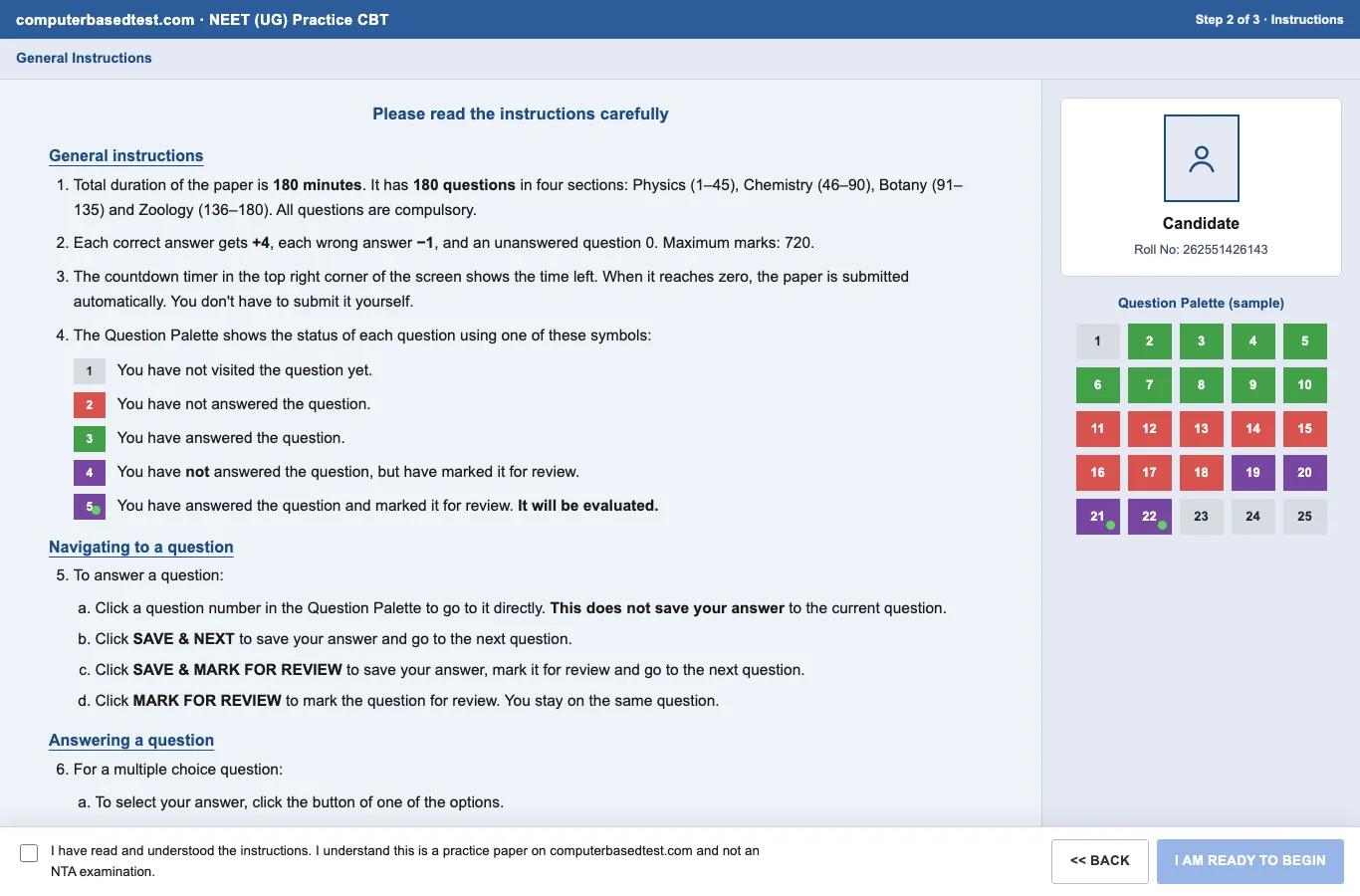
Read the instructions before starting. They show what each symbol means and explain the buttons. The palette may also be collapsed, and a Question Paper icon can show the full paper.
What happens when the timer reaches zero?
The timer is set on the server and appears at the top right. NTA’s JEE Main instructions say: “When the timer reaches zero, the examination will end by itself. You will not be required to end or submit your examination.” The CUET guidelines give the same direction. You do not need to press Submit when the official timer ends.
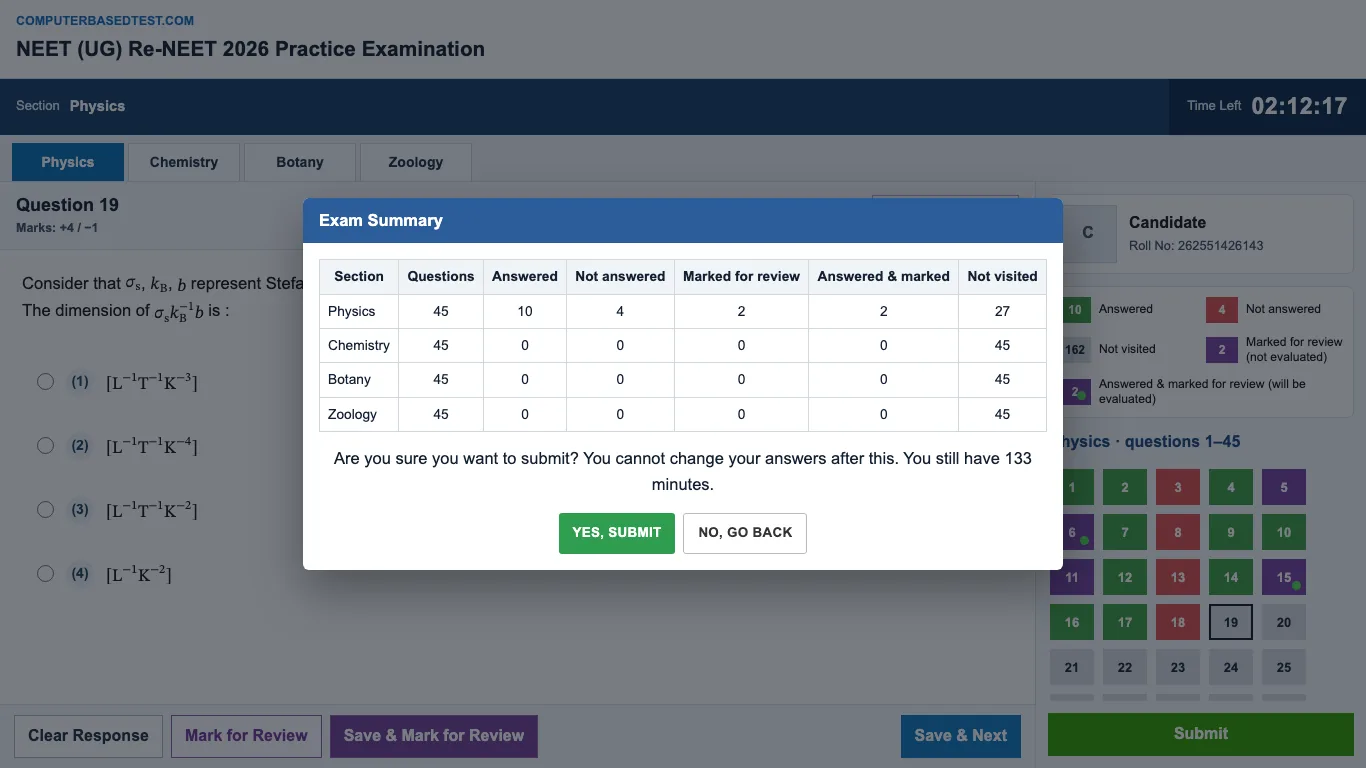
Our practice test may show a summary before you submit. Use it to check how many questions you answered, left blank or marked. This summary image is from our practice screen; NTA’s exact NEET screen has not been released.
What mistakes should you avoid on the screen?
A few small habits can cost you an answer. Build these checks into your practice:
- Leaving without saving: choose Save & Next or Mark for Review & Next before opening another question.
- Confusing review with an answer: marking a question alone does not answer it. Select an option too if you want it evaluated.
- Clearing by mistake: Clear Response removes your selected option. Check the question before using it.
- Trusting colour alone: use the palette legend. Colour shades can differ across screens.
- Forgetting a section change: after switching subjects, check the section name and question number.
- Waiting for time to submit: the official timer ends the test by itself. In practice, use the summary and submit as the test asks.
Practise scrolling to find the palette, then try the buttons on the device you use for practice.
For more screen practice, follow our simple CBT preparation tips. Read the instructions once, then try every button until you can use them without stopping to think.
Questions students ask
Does Mark for Review count as an answer?
Only if you selected an answer as well. NTA’s JEE Main and CUET instructions say an answered question marked for review is evaluated. A question marked without an answer is not.
Can I change an answer after saving it?
Yes. NTA’s current CBT instructions allow you to change answers during the test. Return to the question, select a different option and save it.
Does clicking a palette number save my answer?
No. The palette takes you to another question, but it does not save the answer on the question you are leaving. Save it with a button first.
Can I switch between Physics, Chemistry and Biology?
NTA’s existing CBT screens let you move freely between sections. NEET 2027’s final screen and section setup have not been announced.
Will the NEET CBT screen use these exact colours?
That is not confirmed. The five palette states are in NTA’s current CBT instructions, but the bulletins show symbols rather than colour names. Follow the legend on your test screen.
What if I do not press Submit before time ends?
NTA’s JEE Main and CUET instructions say the test ends by itself when the timer reaches zero. You do not need to submit it manually.